
SMART TV
Our service is designed for maximum flexibility and is compatible with all major IPTV players. To ensure the best experience, we recommend the following setup:
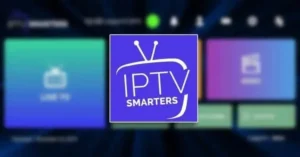
Top Recommendation: IPTV Smarters Pro
This is our most highly recommended application for its stability and user-friendly interface.
Installation Steps:
Open the Google Play Store on your device.
Search for “IPTV Smarters Pro” or “Smarters Player Lite.”
Select Install to download the application to your device.
Account Configuration
Once the installation is complete, follow these steps to link your service:
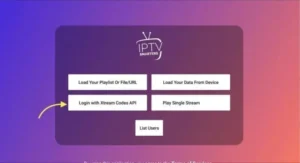
Launch the IPTV Smarters Pro app.
Select the option “Login with Xtream Codes API.” > Tip: This method is the fastest way to sync your playlist and ensures all channel categories and EPG (Electronic Program Guide) data load correctly.
Enter Your Connection Details
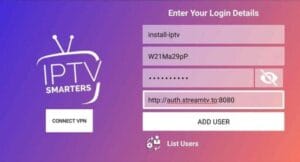
Now, input the credentials provided in your activation email to link your account.
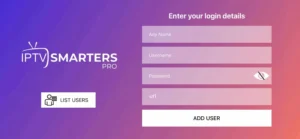
Any Name: In the first field, type a nickname for your playlist (e.g., “My TV” or “Home Service”).
Username: Enter your unique username.
Password: Enter your account password.
Server URL: Enter the specific URL we provided.
Finalize: Click the “ADD USER” button to begin loading your content.
Note: Please ensure there are no extra spaces at the beginning or end of your entries, as the login is case-sensitive.
Synchronizing Your Content
Once you click “ADD USER,” the application will begin importing your subscription details.
Loading Period: Please wait approximately 10 to 20 seconds while the system downloads your Live Channels, Movies, and Series.
Connection Established: Once the synchronization is complete, the app will automatically redirect you to the main dashboard.
Pro Tip: If the loading takes longer than usual, ensure your internet connection is stable. A faster connection will result in a quicker initial setup.
Application: IBO Player
Step 1: Locate and Install the App
Access the App Store: Navigate to the Samsung Apps Store or LG Content Store on your TV.
Search: Type “IBO Player“ into the search bar.
Note: If it doesn’t appear on the home screen, check under the “All Apps” or “Updates” sections.
Download: Select the app and click Install.
Step 2: Retrieve Your Activation Codes
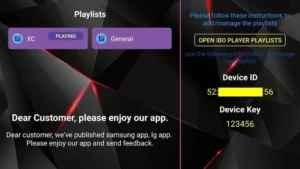
Launch the IBO Player application.
Locate your IDs: On the main screen, you will see two unique codes:
Device ID (MAC Address)
Device Key
Take a Note: Write these down or take a photo of the screen; you will need them to link your subscription in the next step.
Step 3: Access the Activation Portal
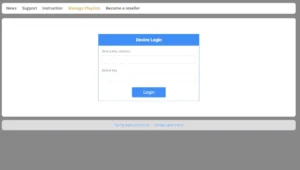
To link your subscription to your TV, you will need to use a secondary device (like a phone or laptop) to access the IBO Player management website.
Navigate to the Portal: Go to the official IBO Player Login Page.
Authentication: Enter the Device ID and Device Key that you noted from your TV screen in Step 2.
Log In: Click the “Login” button to access your device settings.
Step 4: Configure Your Subscription
Now, you will link your service credentials to the IBO Player portal.
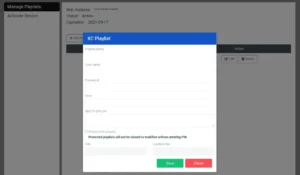
Select Connection Type: Click the button labeled “Add XC Playlist” (Xtream Codes).
Input Your Details: Check your activation email and carefully enter the following:
Playlist Name: Give your list a name (e.g., “My Subscription”).
Username: Your provided username.
Password: Your provided password.
Host (Server URL): The full URL of the Xtream connection server.
Finalize: Click the “Save” or “Register” button to confirm.
Final Step: Refresh Your TV
Once you have saved the details on the website, go back to your Samsung or LG TV and restart the IBO Player app. Your channels and movies should now appear on the home screen!
Amazon Fire TV Stick
APPLE / IOS
Step 1: Download and Install
Locate the App: You can download the application directly from the Apple App Store using this link:
👉 Download Smarters Player Lite (Or search for “Smarters Player Lite” directly in your App Store).
Install: Tap Get or the Cloud/Download icon to install the application on your device.
Step 3: Account Setup
Enter the unique credentials sent to your email after signup. Click “Add User” to proceed.
Step 4: Syncing Content
Please wait 10–15 seconds while the application downloads your live channels and VOD library.
Step 5: Start Watching
Once the dashboard loads, click the “Live TV” icon to browse your channels and start streaming instantly.
Step 6: Select Categories: Choose your preferred channel group (e.g., Sports, News, Movies) to view the channel list.
Step 7: Full Screen: Click a channel name to start the preview. Double-click the small player window to switch to Full Screen mode.
Step 8: Setup EPG: No URL is required. Simply click the “Install EPG” button to automatically load the TV guide.
Final Steps: Navigation & EPG
Step 6: Select Categories: Choose your preferred channel group (e.g., Sports, News, Movies) to view the channel list.
Step 7: Full Screen: Click a channel name to start the preview. Double-click the small player window to switch to Full Screen mode.
Step 8: Setup EPG: No URL is required. Simply click the “Install EPG” button to automatically load the TV guide.
Alternative: GSE Smart IPTV
Available for iPhone, iPad, Apple TV (tvOS), and Mac OS X.
Download: App Store Link
Setup Instructions:
Open the application on your Apple device.
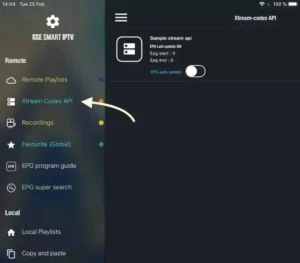
Navigate to the side menu and select “XTREAM CODES API.”
Step 2: Add Your Subscription
Locate the Add Icon: Look for the “+” symbol (usually in the top right corner) to create a new playlist.
Select Connection: Choose the option to add a new XTREAM CODES API list.
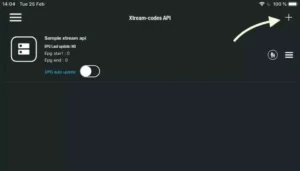
Step 3: Enter Your Connection Details
Playlist Name: Enter any name (e.g., “My Subscription”).
Credentials: Input the Username, Password, and Server URL we provided in your email.
Settings: Enable “Automatic EPG Update” to keep your TV guide current.
Finalize: Click “LOGIN” to sync your content.
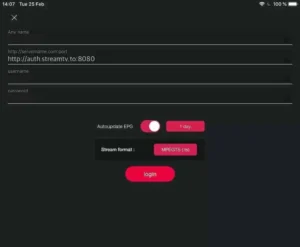
Step 4: Enter the created list and watch movies and live TV channels.
ANDROID
MAG BOX
To activate your subscription, please provide the MAC Address found on the label on the back of your device when placing your order. Activation is handled remotely by our team. Once activated, we will send you a Portal URL to enter into your device settings.
Setting up your MAG device is a straightforward process. Follow these steps to connect your box to our portal:
Step 1: Access System Settings
Load the Device: Turn on your MAG box and wait for the main portal screen to appear.
Open Settings: Use your remote to select “Settings.”
Enter Setup: Press the “SETUP” or “SET” button on your remote control to open the configuration menu.
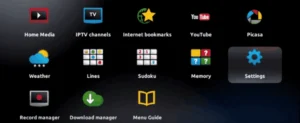
Step 2: Then press “System Settings” and click “Server”.
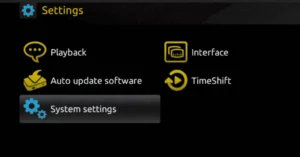
Step 3: Click on “Server”.
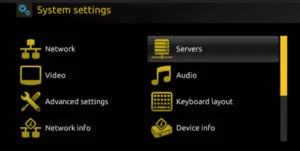
Step 4: Select the “Portals” option and press it.
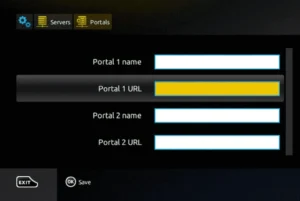
Step 6: Save Your Settings
After entering the Portal URL, select the “OK” button on the screen and press it on your remote to save your changes.
Step 7: Exit the Menu
Once the settings are saved, press the “EXIT” button on your remote control to return to the previous menu.
Step 8: Restart the Device
To apply the new configuration:
Select the “Restart” or “Reboot” option.
Click “OK” to confirm.
Your device will now reload with our service active!